Google Business Profile Video Verification: Complete Guide
Google Business Profile verification confirms that you manage or represent the business you are claiming.
When Google asks you to verify your business by video, you may see a message such as:
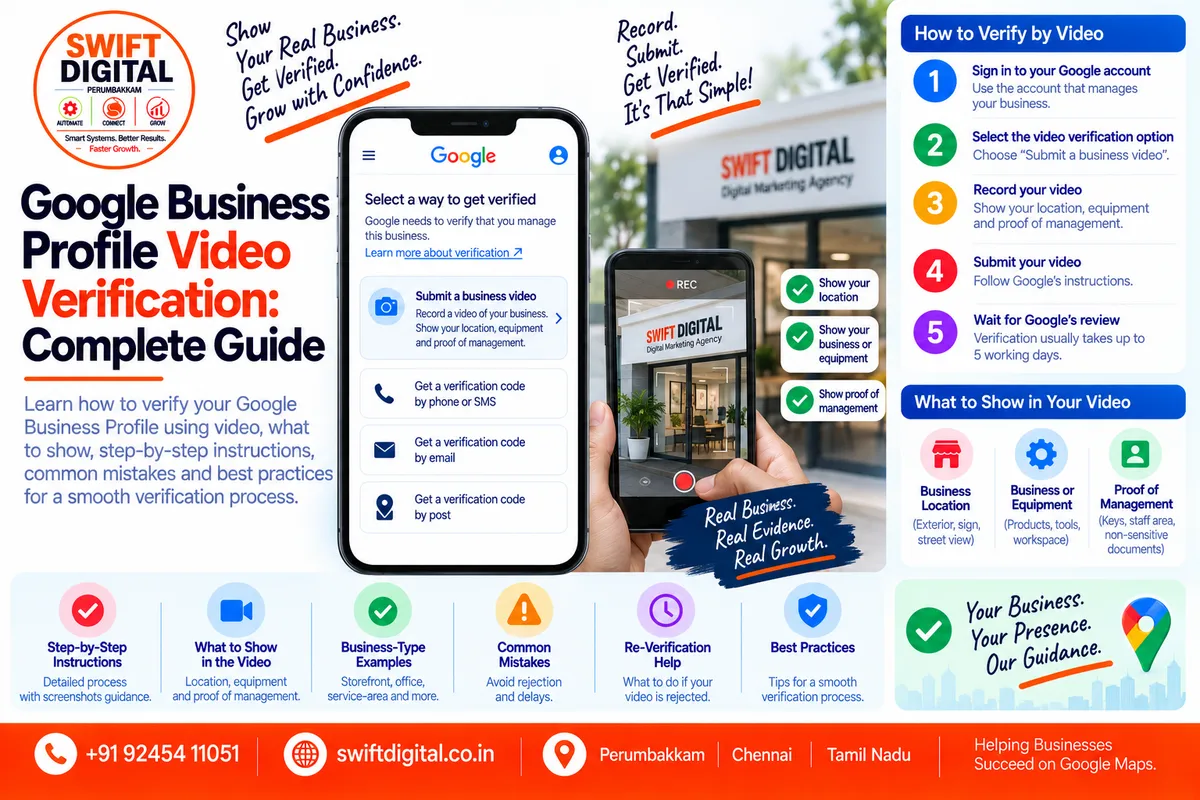
Select a way to get verified
Google needs to verify that you manage this business.
Google may then provide an option such as:
Submit a business video
Record a video of your business.
Show your location, equipment and proof of management.
Google says the video is used for verification and isn't shown publicly.
Video verification can seem confusing, especially when you're unsure what Google expects to see.
This guide explains how to prepare for video verification, what evidence to show, common mistakes, and what to do if your video isn't accepted.
What Is Google Business Profile Video Verification?
Google Business Profile video verification is a verification method that allows Google to confirm that a business exists and that the person managing the profile has a legitimate connection to it.
Google determines which verification methods are available for a particular Business Profile. The available options can depend on factors such as business type, public information, region, and opening hours. Google also states that verification methods are automatically determined and generally can't be changed manually.
If video verification is offered for your profile, Google may ask you to record a video showing evidence such as:
Your business location
Your business or equipment
Proof that you manage the business
Why Does Google Require Verification?
Verification helps establish that the person managing a Business Profile has control of or an appropriate connection to the business.
Once verified, you can manage business information and interact with customers through the profile. Google says verification gives you ownership of your Business Profile and allows you to help keep the business information accurate.
Verification therefore isn't simply an SEO step.
It is also an ownership and business-information verification process.
What Does Google Want to See in a Verification Video?
The most important principle is:
Show real-world evidence that connects you to the business.
Google's verification guidance gives examples of three broad areas:
1. Your location
Show evidence that confirms where your business operates.
Examples can include:
Exterior signage
Street signs
Nearby businesses
Building identification
Other visible location indicators
2. Your business or equipment
Show things associated with the actual operation of the business.
Examples include:
Products
Branded equipment
Tools
Marketing materials
Business equipment
3. Proof that you manage the business
Google gives examples such as:
Access to employee-only areas
Cash register
Kitchen
Storage area
Non-sensitive business documents
Keys used to open the facility
These examples are intended to demonstrate your connection to the business.
Before Recording Your Google Business Profile Video
Don't immediately start recording.
Prepare first.
Create a simple checklist:
Business location
Exterior signage
Equipment
Products
Branded materials
Tools
Proof of management
Appropriate access to the premises
The exact evidence you can show will depend on your business type.
The objective is to make the business easy to verify without exposing unnecessary private or sensitive information.
Step 1: Sign In to the Correct Google Account
Use the Google Account associated with the Business Profile.
Google says you need to sign in to the Google Account associated with the profile to find and manage it.
If you're working with an agency, make sure the appropriate business owner or authorized manager has access.
Step 2: Find Your Business Profile
You can generally find your profile by searching:
Your business name + city
or:
my business
Google's verification instructions provide these methods for locating the profile.
If the business hasn't yet been added or claimed, you may need to complete that process before verification.
Step 3: Select "Get Verified"
When Google asks for verification:
Open your Business Profile.
Select Get verified.
Review the verification options Google provides.
Select the available video verification option if offered.
Follow Google's instructions for recording the video.
Google says available verification methods are determined automatically, so the options shown to one business may not be identical to those shown to another.
Step 4: Plan Your Video
Before recording, decide what you will show.
A simple structure can be:
Part 1 — Location
Show the exterior or another appropriate indicator of the business location.
Part 2 — Business
Show your actual business environment, products, equipment, tools or branded materials.
Part 3 — Management
Show appropriate evidence that you manage or operate the business.
This helps create a logical connection:
Location → Business → Management
What Should a Storefront Business Show?
A storefront business may have several easy forms of evidence.
You could show:
Exterior of the building
Business sign
Entrance
Street sign
Interior
Products
Equipment
Employee-only area
Business tools
Other appropriate operational evidence
Google specifically recommends showing the current location and examples such as outside signs, nearby businesses or street signs.
What Should an Office-Based Business Show?
An office-based business can demonstrate:
Building exterior
Business signage
Office entrance
Workspace
Branded materials
Business equipment
Appropriate non-sensitive documents
Access to restricted areas
The evidence should demonstrate that the business is actually operating from the location represented by the profile.
What Should a Service-Area Business Show?
Service-area businesses can require a different approach because customers may not visit the business location.
Google's verification guidance includes business or equipment evidence such as:
Branded equipment
Tools
Products
Marketing materials
and proof that you manage the business.
For example, a service business might have:
Branded vehicle
Tools
Equipment
Uniforms
Business materials
Work equipment
Only show evidence that genuinely belongs to and represents your business.
Don't manufacture evidence for verification.
What Is "Proof of Management"?
Proof of management helps demonstrate that you have an actual connection to the business.
Google gives examples such as:
Keys used to access the facility
Access to employee-only areas
Cash register
Kitchen
Storage area
Non-sensitive business documents
The important point is that the evidence should demonstrate legitimate management access.
Protect Sensitive Information
When recording your verification video, avoid unnecessarily exposing:
Passwords
Banking information
Customer records
Personal identification numbers
Private customer information
Confidential documents
Security codes
Sensitive financial information
If a document is needed as evidence, show only what is appropriate and relevant.
The objective is verification—not disclosure of confidential information.
Do You Need to Show Your Face?
The verification process is designed to demonstrate the business and your connection to it.
Follow the instructions presented by Google during your verification process.
The key evidence Google describes includes the location, business/equipment and proof of management.
Don't add unnecessary personal information simply because you think it will strengthen the verification.
Common Google Business Profile Video Verification Mistakes
Mistake 1: Showing Only a Logo
A logo by itself doesn't demonstrate the physical business or management connection.
Show real business evidence.
Mistake 2: Showing Only the Website
A website doesn't necessarily demonstrate that you operate the business at the claimed location.
Show appropriate real-world evidence as requested.
Mistake 3: Recording Random Footage
A long, unstructured video can make it difficult to understand what you're demonstrating.
Plan the sequence before recording.
Mistake 4: Not Showing the Location
If Google asks for location evidence, make sure your video includes appropriate indicators of the business location.
Google specifically gives examples such as signs, street signs and nearby businesses.
Mistake 5: Not Showing Business Equipment
If equipment is relevant to your business, include it.
For example:
Plumber → tools and equipment
Electrician → professional equipment
Restaurant → kitchen/equipment
Retailer → products and store environment
Contractor → tools and materials
Use real business assets.
Mistake 6: Showing Someone Else's Business
The evidence should represent the business being verified.
Don't use:
Stock photos
Another company's office
Borrowed signage
Someone else's equipment
Fake documentation
Verification should accurately represent the business.
Mistake 7: Making Unsupported Claims
Don't verbally claim:
"We are the biggest company in the city."
or:
"We are the number-one business."
Those claims aren't what verification is designed to establish.
Focus on factual evidence of the business and your management connection.
Mistake 8: Showing Sensitive Information
Don't expose customer records, passwords, financial details or other confidential information just to create a stronger-looking video.
Only show what is necessary and appropriate.
How Long Does Google Business Profile Verification Take?
Google says that after you complete verification, it reviews the information you provided and that verification review can take up to five working days. In some cases, verification can happen instantly, including certain situations involving Search Console verification or bulk verification.
Therefore, don't promise a client that a verification decision will happen within a specific number of hours.
What Happens After You Submit the Video?
Google reviews the information provided during verification.
If the verification is successful, you'll receive confirmation and gain verified access to manage the profile.
If Google cannot completely verify the business, you may see the verification option again.
What If Your Video Is Rejected?
Google's current help documentation refers to a "Review issues" notification when a video recording isn't accepted.
If you receive this notification:
Select Review issues.
Read the instructions provided.
Address the identified problem.
Re-verify the business.
Google also says that if multiple verification options are shown, you can try another available method.
What If Google Asks for More Information?
Sometimes Google may ask you to provide additional information to re-verify the profile.
Google says this can happen when some business details were recently updated.
If prompted:
Select Get verified.
Follow the re-verification instructions.
Provide the requested information.
Wait for Google's review.
Can You Choose a Different Verification Method?
Google says verification methods are automatically determined and can't be manually changed.
However, if Google displays multiple verification options, you can choose from the methods that are available to your profile.
Possible methods can include:
Phone or SMS
Email
Live video call
Mail
Video recording
Not every business receives every option.
Phone or SMS Verification
If Google offers phone or SMS verification, you need access to the business phone number or the ability to receive text messages.
Google notes that interactive voice response systems won't receive the verification code.
The general process is:
Select Get verified.
Select Phone or SMS.
Answer the call or receive the text.
Enter the verification code.
Never share your verification code with another person.
Email Verification
If email verification is available:
Select Get verified.
Select Email.
Make sure you can access the email address shown.
Follow the instructions in the email.
Google notes that the available verification email must be accessible to you.
Live Video Verification
Live video verification is different from a recorded business video.
Google may connect you with a support representative through a live video call.
Google's guidance says live video verification may not be available to every business and is only available within the opening hours of the business location.
During the live video call, Google may ask you to demonstrate:
Current location
Business equipment
Products
Branded materials
Proof of management
Mail Verification
In some cases, Google may offer postcard/mail verification.
If this option is available, Google sends a verification code to the business postal address.
Google says most codes arrive within 14 days.
While waiting for a postcard:
Don't edit your business name
Don't edit your address
Don't edit your category
Don't request another code
Google says making these changes can invalidate the code or extend the process.
Verification codes expire after 30 days.
Important: Keep Your Verification Code Secure
Google explicitly warns that it will never ask you for your verification code.
Don't give your code to:
SEO agencies
Freelancers
Unknown callers
People claiming to be Google
Other Business Profile managers
Google's verification instructions say to keep the code secure and not share it, even with people who manage the Business Profile.
Google Business Profile Video Verification Checklist
Before submitting your video, review:
Location
Correct business location
Exterior/signage where applicable
Street sign or location indicator where useful
Nearby business/location evidence where appropriate
Business
Real business environment
Equipment
Products where applicable
Tools
Branded materials
Other legitimate business evidence
Management
Appropriate proof of management
Facility access where relevant
Keys where appropriate
Non-sensitive business documentation where appropriate
Privacy
No passwords
No OTPs
No customer records
No sensitive financial information
No unnecessary personal information
Accuracy
Real business
Real location
Real equipment
Accurate business information
No fabricated evidence
Video Verification Preparation by Business Type
Business Type | Useful Evidence |
|---|---|
Retail Store | Storefront, signage, products, checkout area |
Restaurant | Exterior, signage, kitchen, equipment |
Clinic | Location, signage, equipment, appropriate management evidence |
Office | Building, office, signage, workspace |
Contractor | Tools, equipment, branded materials, business location |
Plumber | Tools, equipment, branded vehicle/materials |
Electrician | Professional equipment, tools, business materials |
Cleaning Company | Equipment, branded materials, operational tools |
Service-Area Business | Equipment, tools, branded materials, legitimate management evidence |
Multi-Location Business | Evidence relevant to the specific location being verified |
These are practical examples—not a guarantee of what Google will request. The actual verification requirements are determined by Google and can vary by business.
What If Your Business Doesn't Have Signage?
Don't create fake signage.
Instead, show other legitimate evidence that establishes your business and management connection.
Google's examples include:
Nearby businesses
Street signs
Products
Branded equipment
Marketing materials
Tools
Employee-only areas
Keys
Other appropriate operational evidence.
The evidence available will depend on your business model.
What If You Are a Service-Area Business?
A service-area business may not have a customer-facing storefront.
That doesn't mean you should create a fake storefront for verification.
Instead, use legitimate business evidence appropriate to the business model.
For example:
Branded vehicle
Professional tools
Equipment
Uniforms
Marketing materials
Operational equipment
The objective is to demonstrate that the business exists and that you manage it.
What If You Recently Changed Your Business Information?
Be careful when making major changes during verification.
Google says it may request additional information when business details have recently been updated.
If Google asks you to re-verify:
Review the current business information.
Make sure it accurately represents the business.
Follow the verification instructions.
Provide the requested evidence.
Don't Create a New Profile Just Because Verification Is Difficult
If your existing profile is legitimate but verification is causing problems, creating another profile can create additional issues.
First use the verification and support processes available to you.
Google provides support resources for verification issues and directs businesses to contact support if they cannot verify using the available methods.
Google Business Profile Verification Workflow
A simple workflow is:
Create or Claim Profile
↓
Get Verified
↓
Review Available Verification Methods
↓
Prepare Evidence
↓
Submit Video / Complete Verification
↓
Google Reviews
↓
Verified
or
↓
Review Issues / Additional Information
↓
Re-Verify
This makes the process easier to manage.
30-Day Google Business Profile Verification Action Plan
Days 1–3 — Profile Review
Check:
Business name
Address
Service area
Phone
Website
Category
Business model
Make sure the profile accurately represents the real business.
Days 4–7 — Prepare Evidence
Collect:
Location evidence
Equipment
Tools
Products
Branding
Management evidence
Avoid collecting unnecessary sensitive documents.
Days 8–10 — Record
Prepare your video sequence.
Think:
Location → Business → Management
Keep the evidence clear and relevant.
Days 11–15 — Submit
Submit the available verification method through your Business Profile.
Don't use fabricated evidence.
Days 16–20 — Monitor
Watch for:
Verification confirmation
Review issues
Additional information requests
Re-verification prompts
Days 21–30 — Resolve Issues
If verification wasn't accepted:
Read Google's feedback
Review your evidence
Address the issue
Re-verify
Contact Google support when appropriate
Frequently Asked Questions
What is Google Business Profile video verification?
It is a verification method Google may provide to confirm that a business exists and that the person managing the profile has an appropriate connection to the business.
What should I show in my verification video?
Google's examples include your business location, business or equipment, and proof that you manage the business.
Is the verification video shown publicly?
Google's verification interface states that the business video is used for verification and isn't shown publicly.
Can I choose video verification?
Google automatically determines the verification methods available to a profile. If video verification is offered, you can use it; you can't manually force Google to provide a particular method.
How long does verification take?
Google says its verification review can take up to five working days after you complete the verification process, although some profiles may be verified instantly in certain circumstances.
What happens if my video is rejected?
If Google shows a Review issues notification, follow the instructions and re-verify. If multiple methods are available, Google says you can try another available method.
Can an agency complete verification for me?
An agency can assist with Business Profile management when properly authorized, but the verification evidence should accurately represent the real business and the person managing it.
Can I share my verification code with my SEO agency?
No. Google says not to share verification codes, even with people who manage your Business Profile.
Final Thoughts
Google Business Profile video verification is designed to establish a real connection between the business, its operations, its location where applicable, and the person managing the profile.
The best approach is straightforward:
Prepare → Show the real business → Demonstrate management → Protect sensitive information → Submit → Respond to Google's verification result
Don't manufacture evidence, create fake locations, borrow another company's premises, or expose confidential information.
Use genuine business assets and follow the verification instructions shown in your Google Business Profile.
For the most current verification options and requirements, refer to Google's official "Verify your business on Google" guide.


